Primary asset front door
Selected asset • Asset Library • CrankScope • A.I.R.O.N. • Service • PM • records
Crank™ · Vehicle + Equipment Intelligence · Current Capability Map
Crank™
The direct connection between you and your car.
Crank is a local-first, asset-centered operating companion for vehicles and equipment. One selected asset can carry its diagnostics, reader policy, live-data choices, maintenance programs, vibration evidence, routes, photos, reports and history — with OBD-II when available and useful OBD-free capability when it is not.
Explore My Garage
Crank Main
Operator manual
A.I.R.O.N. ROCKET™
Inspection Lab\nThermal Lab
OBD-II Library
Vehicles + equipment
With or without OBD-II
Asset-owned records
Local-first V.A.U.L.T.
Diagnostics + PM + field evidence
No data selling
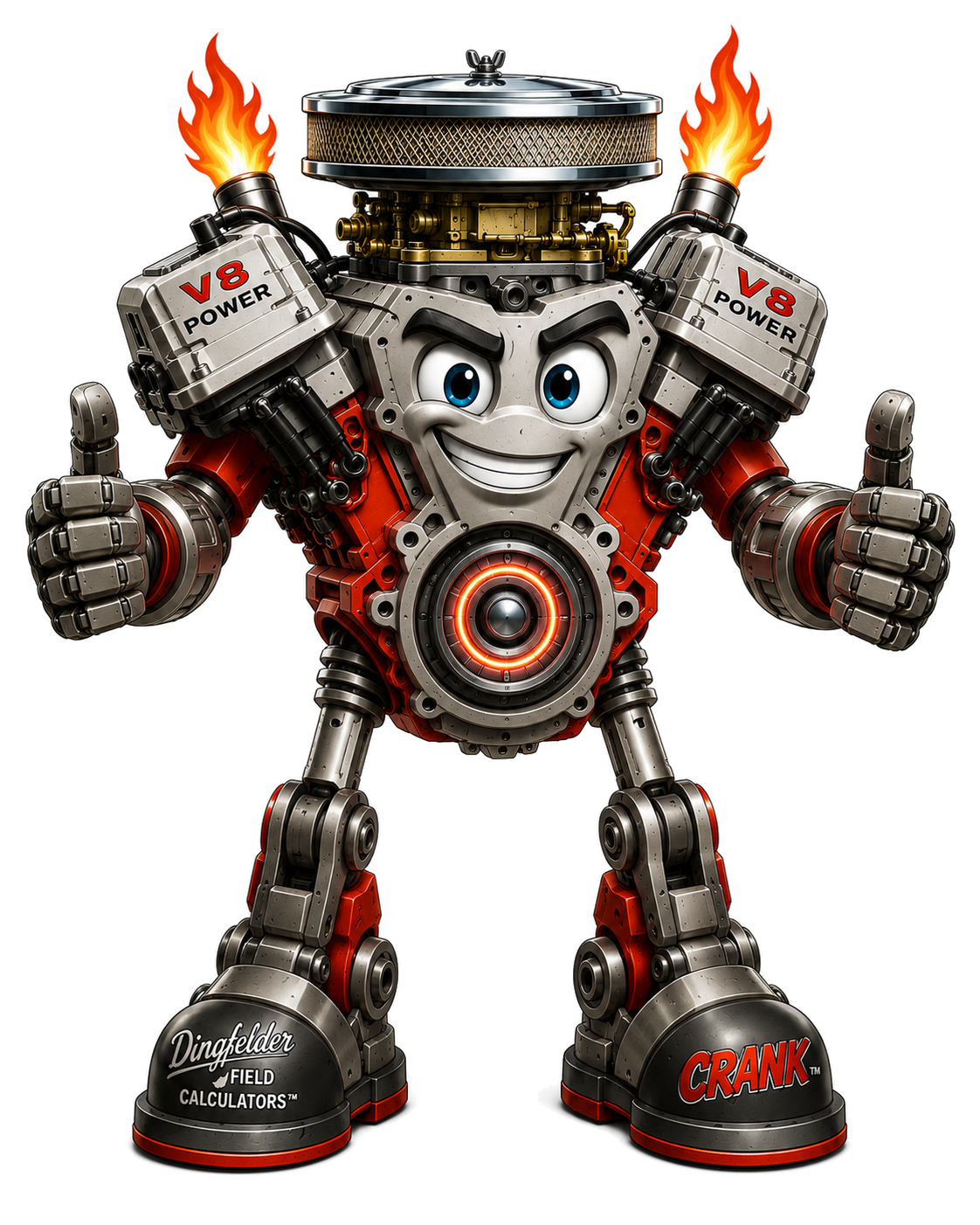
Diagnostics, maintenance, field evidence, performance and everyday use stay connected to the vehicle or equipment that produced them.
Performance when you want it. Efficiency when you choose it. Evidence when you need it. Intelligent assistance because you deserve it.
Crank Main
Five front doors. The rest of the system stays organized behind them.
The current Crank Main deliberately keeps the first decision simple: go to My Garage, open incident guidance, record a drive/trip, work with Codes / Reader, or open Runtime Gauges. Major secondary systems live inside My Garage instead of competing for space on the home screen.
Capability-first website: the labels below mirror the current application architecture so an interested party can move from this page to the app without learning a second vocabulary.
Calm incident guidance
Assistance context • evidence • deliberate next steps
OBD-FREE route context
Map / Track • travel • GPS • trip records
OBD-II diagnostic evidence
Reader binding • Deep Scan • code states • reset safety
Live operating view
12 asset-owned fields • availability • Aura • source truth
Inside My Garage
The capability map follows the app.
My Garage is the asset-centered second front door. Each section below lists what it actually does in the current product architecture. Open any section for the deeper explanation.
Asset Library & Selected Drawer
- One selected asset at a time
- Real vehicles and equipment
- Simulator vehicles
- Asset categories
CrankScope™
- Equipment Interview
- Real asset resolution
- Measurement-point identity
- Repeatable reference photos
A.I.R.O.N. Technician Data Logger
- Built-in diagnostic setups
- Custom setups
- Vehicle-specific setups
- Mixed data sources
Service Command Center™
- Selected-asset carryover
- Capability Coverage Matrix
- Service preflight
- One OBD operation at a time
Parts Finder™
- Repair & Replacement
- Used & Salvage Parts
- Performance & Upgrades
- Selected-asset fitment
Driver Suite
- Daily Driver
- Efficiency Driver™
- Delivery / Work
- Travel Assist
PM Center™
- Factory PM recommendations
- Configuration-aware applicability
- Step Train program builder
- Perform saved PMs
Motorheads™
- Baseline Run
- 0–60 MPH
- 1/8 Mile
- 1/4 Mile
Experience Recorder
- Multiple activity contexts
- Selected-asset ownership
- GPS path recording
- Motion evidence
My V.A.U.L.T.
- Recent records
- Diagnostic reports
- A.I.R.O.N. logs
- CrankScope records
Galleries / Media
- Car Pride™
- Condition photos
- Field captures
- Motorheads media
More Tools
- Live Data Dashboard
- Fortune Teller / Vehicle Aura
- Road Weather Watch
- Device Steward
Crank Alerts
- Standard Mode
- Vibration Mode
- Silent Mode
- Persistent operator choice
Help / Setup
- V.A.U.L.T. setup
- Capture setup
- Support desk
- Start Here
About Crank™
- The direct connection
- Beyond the car
- Local-first doctrine
- With or without OBD-II
Engineering Gold · real field event
Fortune Teller caught the ghost.
On June 30, 2026, a 2010 Chrysler Town & Country produced the kind of intermittent electrical event that can make a vehicle feel possessed: rapid warning-light behavior, ETC / electronic throttle and traction-control lights latched on, limp-mode behavior, restart-to-clear symptoms, and no useful fault-code trail.
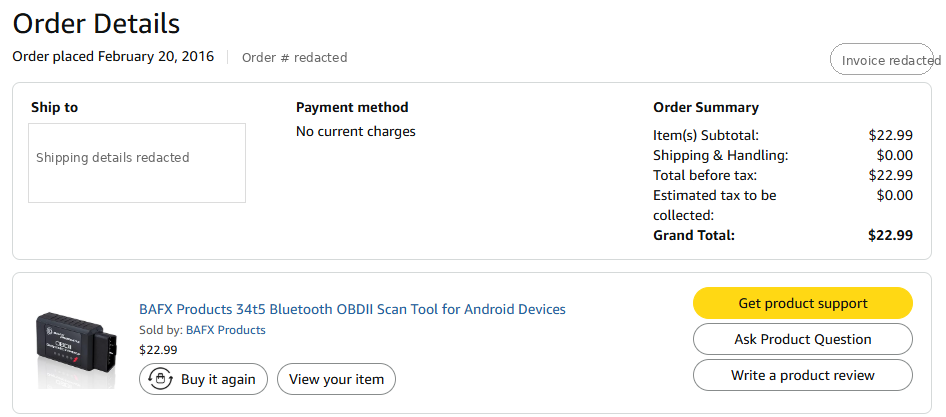
Fortune Teller™, brought into Crank™ from A.I.R.O.N. industrial monitoring doctrine, caught a fleeting 256.0 V charging-spike sample through a low-cost Bluetooth OBD-II reader. The battery bus did not sit at 256 volts; this was treated as a power-integrity transient candidate, source-needs-review evidence, and a real clue that lined up with the vehicle’s module behavior.
This validated the A.I.R.O.N. industrial monitoring doctrine inside Crank™: catch abnormal conditions while they exist, preserve them locally, and turn fleeting machine behavior into usable evidence.
Crank™ does not command ETC, anti-skid, or traction-control lights. It observed the event window. The vehicle modules latched the lights. That is why this is not a parts guess and not a programming brag — it is a preserved diagnostic story.
- Observed behaviorETC + traction-control lights, limp behavior, restart-to-clear pattern.
- No clean confessionStandard code checks produced no useful DTC trail for the power issue.
- Fleeting signalThe abnormal value may have lasted only one scan window.
- Crank responseFortune Teller transient latch: detected, written to V.A.U.L.T., retained for review.
Crank™ operator manual
A small operator book for the app.
The capability map above is the fast product tour. This full-context operator reference remains on the same URL so existing in-app Help / Manual links and chapter anchors continue to work while the public website is modernized.
Start here: Crank is now organized around a selected vehicle or equipment asset. My Garage holds the major asset-owned systems; Crank Main keeps the highest-use drive, incident, OBD and Runtime paths visible. Use the table below as the detailed operator reference.
- My GarageSecond front door, assets, drawers, and big lanes.
- Asset Library / Selected DrawerAsset authority, packet ownership, reader and records.
- A.I.R.O.N. Technician Data Logger25-point setups, Ghost Watch, CSV evidence.
- Service Command Center™Coverage, preflight, research and evidence.
- PM Center™Factory knowledge, Step Train, calendar, materials and reports.
- CrankScope™Equipment interview, measurement point, record, compare and trend.
- Crank's ToolboxLocal instruments, HUD, field tools, and browser links.
- Compass / Inclinometer / HUDMagnetic/GPS heading, pitch/roll, and large display.
- About Crank™Mission, Dingfelder.co links, manual, and training.
- Code ReaderSupported OBD-II code reading.
- Active / Demo CodesReal code review and practice mode.
- Live Data GaugesDriver-friendly runtime views.
- Reset Codes GateEvidence-first clear-code protection.
- V.A.U.L.T. RecordsLocal reports, notes, and evidence.
- Protected Test SessionsInterrupted logs and vehicle-change protection.
- Vehicle / Reader FormsOrganized vehicle and situation context.
- Drive Log / Map TrackTrip, route, and session context.
- Return to FavoriteSaved-place return support.
- Experience RecorderVehicle, work, outdoor, and motion sessions.
- Motorheads™Controlled-course performance tools.
- Parts Finder / AssistanceOperator-controlled maps/search handoff.
- GalleriesCar Pride, Event Recording, Sportsman’s Guide, and Motorheads playback.
- Vibration StudioPhone-sensor motion review.
- Guardian / Fortune Teller™Warnings, trends, and review concepts.
- Share / Support PacksMechanic-ready and support-ready context.
- Privacy / Local-FirstOperator-controlled records and sharing.
Crank Promise
Crank helps you speak the same language. It turns symptoms, supported vehicle data, photos, notes, routes, records, and reports into organized context you can understand, save, and share when you choose.
When to use it
- Use this idea any time the problem is confusing, emotional, intermittent, or hard to explain to a shop or helper.
How Crank helps
- Crank gathers evidence into practical lanes instead of pretending one code or one symptom proves the answer.
- Crank keeps the operator in control of what is recorded and what is shared.
Limits / safety notes
- Crank does not replace professional diagnosis, safe vehicle operation, or OEM service information. It helps preserve and present the story.
Operator control: Review records before sharing. Keep local records private unless you choose to export, copy, send, or share them.
Back to capabilitiesWorks With or Without OBD-II
Crank is useful with a compatible Bluetooth ELM327-style adapter, but it does not become useless without one. Many companion tools use phone sensors, manual notes, photos, route context, galleries, and operator-selected records.
When to use it
- Connect an adapter when supported codes or live vehicle data are needed. Use no-adapter mode for photos, notes, route records, galleries, Experience Recorder sessions, travel support, and vehicle history.
How Crank helps
- OBD-II availability depends on the vehicle, adapter quality, permissions, and connection state. Non-OBD tools remain available for classic vehicles, rentals, equipment, trailers, outdoor sessions, and general records.
Limits / safety notes
- Generic OBD-II is limited. Enhanced modules and manufacturer-specific data may not be available through a basic adapter.
Operator control: Review records before sharing. Keep local records private unless you choose to export, copy, send, or share them.
Back to capabilitiesYour Data Stays Yours
Crank is local-first. Records, photos, reports, route context, and session files remain under operator control unless the operator chooses to export, copy, send, or share them.
When to use it
- Use V.A.U.L.T. records when you want a private record before repair, during a trip, after an incident, or before communicating with someone else.
How Crank helps
- Crank is designed around operator action: create, review, export, copy, send, or share. It does not need silent background upload to be useful.
Limits / safety notes
- Back up important records according to your own storage needs. Deleting or clearing local files may remove evidence you wanted to keep.
Operator control: Review records before sharing. Keep local records private unless you choose to export, copy, send, or share them.
Back to capabilitiesWhat Crank Does Not Access
Crank does not need contacts, credit cards, address books, unrelated accounts, SMS history, call history, browsing history, or hidden data-broker access to do its job.
When to use it
- Review permissions when enabling features such as Bluetooth, location, camera, photos, or future recording tools.
How Crank helps
- Permissions should match the feature: Bluetooth for adapters, location for maps/route records, camera/photos for operator-created images, and storage/media access for records and galleries.
Limits / safety notes
- Do not grant permissions you do not intend to use. Crank should remain clear about why a permission is requested.
Operator control: Review records before sharing. Keep local records private unless you choose to export, copy, send, or share them.
Back to capabilitiesAbout Crank
Crank™ is now treated as a public-facing driver companion from Dingfelder Enterprises: My Garage, OBD/OBD-free tools, route context, records, galleries, reports, Dingfelder.co pages, and A.I.R.O.N. doctrine are organized so the user can understand what Crank is before digging into technical screens.
When to use it
- Use About Crank when a new user wants the mission, website, manual, training, support, A.I.R.O.N., V.A.U.L.T., Fortune Teller, Field Calculators, or contact links.
How Crank helps
- The app now gives About Crank™ its own My Garage card instead of hiding it three layers deep.
- Dingfelder.co links are presented as individual public-facing cards so users can understand the ecosystem before tapping out to the browser.
Limits / safety notes
- Website links open only when the operator taps them. External websites, YouTube, maps, travel, vendors, and services run under their own terms and privacy practices.
Operator control: Crank is local-first. Browser links, exports, reports, and shares happen only when the operator chooses them.
Back to capabilitiesWhat Do I Use?
Crank is organized into lanes so the operator can choose the right tool without digging through a broad technical grid.
When to use it
- Use Code Reader for supported scan data, V.A.U.L.T. for records, Map / Track for route context, Experience Recorder for selected sessions, Galleries for review/playback, and Motorheads for controlled-course performance tools.
How Crank helps
- Start with the task you are trying to finish: read, record, review, return, share, or get assistance.
Limits / safety notes
- When uncertain, document first and act second. The best record is often the one created before clearing, repairing, replacing, or forgetting details.
Operator control: Review records before sharing. Keep local records private unless you choose to export, copy, send, or share them.
Back to capabilitiesMy Garage / What Do You Use Crank For?
My Garage is Crank’s asset-centered second front door. It begins with the selected vehicle or equipment packet, Change Vehicle / Equipment, the Asset Library and Selected Drawer, then presents CrankScope™, A.I.R.O.N. Technician Data Logger, Service Command Center™, Parts Finder™, Driver Suite, PM Center™, Motorheads™, Experience Recorder, My V.A.U.L.T., Galleries / Media, More Tools, Crank Alerts, Help / Setup and About Crank™.
When to use it
- Use My Garage when the task belongs to a specific vehicle or piece of equipment and you want its records, settings and history to travel together.
- Use Change Vehicle / Equipment or Asset Library before work when the selected packet is not the asset in front of you.
How Crank helps
- The selected packet is the shared authority for asset identity, reader policy, Runtime choices and asset-owned evidence.
- Large theatrical cards mirror the major jobs instead of hiding them in one generic toolbox.
- Documents, tag/nameplate images, PM programs, CrankScope measurement points and other reusable asset knowledge remain attached to the asset.
Limits / safety notes
- Asset folders and drawer labels organize records. They do not certify vehicle condition, ownership, legal status, inventory value, repair completeness, or evidence admissibility.
Operator control: Every drawer still uses local-first V.A.U.L.T. housekeeping. Nothing uploads automatically.
Back to capabilitiesAsset Library / Selected Drawer
The Asset Library is the authority for real vehicles, equipment and simulator identities. The Selected Drawer is the fast view into the active packet.
When to use it
- Use it to create, select, organize or review the asset that Crank should treat as current.
How Crank helps
- Asset-owned reader binding, gauge choices, records, documents and maintenance context can follow the selected packet.
- Equipment identification photos and documents can remain available later without returning to the machine just to read a tag.
Limits / safety notes
- Confirm the actual installed configuration when exact capacities, service specifications or component-specific procedures depend on it.
Operator control: Review records before sharing. Keep local records private unless you choose to export, copy, send, or share them.
Back to capabilitiesA.I.R.O.N. Technician Data Logger
A configurable diagnostic recorder for up to 25 requested OBD-II, mobile-interface or Crank-calculated points with event markers, Ghost Watch and incremental CSV evidence.
When to use it
- Use it when the symptom is intermittent or the technician needs operating conditions preserved over time instead of a single scan snapshot.
How Crank helps
- Built-in setups cover Cooling, Charging, Transmission, Fuel Trim / Catalyst, Intermittent Stall, Highway Hesitation, Warm Restart and Electrical Load Test.
- Every test reevaluates which requested measurements are actually available from the current vehicle, reader and mobile interface.
Limits / safety notes
- Measurements are acquired sequentially; unavailable, stale, delayed or disconnected values are not treated as fresh simultaneous data.
Operator control: Review records before sharing. Keep local records private unless you choose to export, copy, send, or share them.
Back to capabilitiesService Command Center™
A controlled service workspace for application coverage, read-only preflight, procedure research and packet-owned evidence.
When to use it
- Use it before a service procedure when you need to establish the selected vehicle, supported coverage and current operating conditions.
How Crank helps
- Read-only preflight can document identity authority, packet ownership, reader/protocol/voltage and observable vehicle state.
- Verified manual procedure knowledge can be cached by applicability for offline use.
Limits / safety notes
- Crank does not invent manufacturer procedures or enable unverified write/programming commands.
Operator control: Review records before sharing. Keep local records private unless you choose to export, copy, send, or share them.
Back to capabilitiesPM Center™
Asset-owned preventative maintenance for vehicles and equipment: factory recommendations, Step Train program building, PM calendar, materials, documents, history and professional reports.
When to use it
- Use it to create, schedule, perform and document recurring maintenance for the selected asset.
How Crank helps
- Factory knowledge can be reviewed through a VIN-free applicability path; Step Train turns approved knowledge or operator procedures into structured programs.
- The Materials Library tracks fluids, filters, parts and cross-references; the Asset Document Cabinet can retain manuals, tags and paper PM source forms.
Limits / safety notes
- Exact capacities and specifications must match the installed configuration. Missing authoritative values remain unresolved rather than being invented.
Operator control: Review records before sharing. Keep local records private unless you choose to export, copy, send, or share them.
Back to capabilitiesCrank's Toolbox
Crank's Toolbox is the practical workbench: local tools stay in the app; Dingfelder.co field tools open in the browser only when tapped. It now includes direct access to Compass™, Inclinometer™, and HUD Display so they are not hidden inside Experience Recorder options.
When to use it
- Use Toolbox for Vibration Studio, Screen Capture, Compass™, Inclinometer™, HUD Display, Field Calculators, Training, and other operator utilities.
How Crank helps
- Phone-sensor tools can be useful even when no OBD-II adapter is connected.
- Browser links are operator-controlled: no WebView, no hidden loading, no automatic upload.
Limits / safety notes
- Toolbox instruments are practical field aids, not certified measurement systems. Confirm critical work with approved tools and safe procedures.
Operator control: Local tools remain local. External links leave the app only when selected.
Back to capabilitiesCompass™ / Inclinometer™ / HUD Display
Compass™ supports Magnetic, GPS, and Auto-Switch modes. Auto-Switch uses GPS bearing when GPS is fresh and movement is at or above 6 mph, then returns to magnetic heading at lower speeds where GPS bearing can drift. Inclinometer™ shows phone pitch/roll. HUD Display provides a large local display and windshield mirror preview.
When to use it
- Use Magnetic Compass for standing, slow movement, and low-speed orientation when phone sensors are stable.
- Use GPS Compass for moving bearing when Android location permission and GPS bearing are available.
- Use Auto-Switch when you want Crank to choose GPS while moving and magnetic heading below the switch speed.
How Crank helps
- The switch makes the compass more honest: GPS bearing is helpful while moving but unreliable when stopped; magnetic heading is useful at low speed but can be affected by metal and calibration.
- HUD Display is a convenience screen for large local information, not a certified vehicle instrument.
Limits / safety notes
- Magnetic heading can be affected by magnets, speakers, wiring, metal, vehicle structure, phone case, and calibration.
- GPS heading can drift, lag, or disappear. HUD reflection depends on mount, glass, brightness, lighting, and local law.
- Do not use these tools for aviation, marine navigation, rescue, rollover decisions, surveying, legal measurement, grade safety, or certified measurement purposes.
Operator control: Location use is permission-gated and feature-driven. Use safe mounting and do not operate the phone while driving.
Back to capabilitiesAbout Crank™ / Dingfelder.co Links
About Crank™ is the public information card inside My Garage. It gives users direct, curiosity-friendly cards for Crank Home, Operator Manual, Dingfelder.co, A.I.R.O.N., V.A.U.L.T., Fortune Teller, Field Calculators, C.A.T.A.S.T.R.O.P.H.E., Training, Field Handbook, System Components, Contact, and YouTube how-to videos.
When to use it
- Use About when a user wants to understand the product, privacy promise, support path, or Dingfelder ecosystem.
How Crank helps
- The links are not a hidden list anymore; they are surfaced as individual graphical cards that explain where the tap goes.
Limits / safety notes
- Public webpages and video platforms may change independently of the app. Use current website information for public documentation and app store messaging.
Operator control: Links open in the browser only when tapped.
Back to capabilitiesCool Down with Crank
Cool Down with Crank is the operator doctrine for avoiding guesswork when frustration rises. Stop, breathe, document, and return with evidence.
When to use it
- Use it when a repair problem is frustrating, intermittent, expensive, or emotionally charged.
How Crank helps
- Crank supports notes, records, screenshots, photos, route/session context, and reports that turn the moment into something reviewable.
Limits / safety notes
- Do not clear codes, replace parts, or keep driving unsafe conditions just because you are tired of the problem.
Operator control: Review records before sharing. Keep local records private unless you choose to export, copy, send, or share them.
Back to capabilitiesSource Badges / Data Source
Source clarity matters. Crank separates OBD-II data, phone-sensor data, GPS context, operator notes, photos, and app-generated records whenever the source affects trust.
When to use it
- Use source labels when reviewing reports, comparing OBD speed to GPS speed, checking route records, reviewing phone motion, or sharing mechanic-ready context.
How Crank helps
- A source badge helps explain whether a value came from the vehicle, the phone, GPS, the operator, or Crank’s generated record.
Limits / safety notes
- Every source has limits. GPS can drift, phone sensors can be bumped, adapters can disconnect, and vehicle PIDs can be unsupported.
Operator control: Review records before sharing. Keep local records private unless you choose to export, copy, send, or share them.
Back to capabilitiesWebsite / Play Store Copy
Public Crank copy should stay direct, careful, and provable: privacy-first, local records, no data selling, no parts guessing, and clear feature limits.
When to use it
- Use public copy to set the right expectation before install.
How Crank helps
- Crank should say what it helps with without overstating diagnosis, compatibility, legal uses, safety capabilities, or repair outcomes.
Limits / safety notes
- Avoid claims that a code confirms a part. Codes are clues, not convictions.
Operator control: Review records before sharing. Keep local records private unless you choose to export, copy, send, or share them.
Back to capabilitiesGetting Started
Start with the job in front of you: read supported codes, record a drive, save a photo, document symptoms, open a gallery, create a report, or use Crank without an adapter.
When to use it
- First decide whether you are connected to an OBD-II adapter or using mobile/no-adapter tools. Then choose the matching lane.
How Crank helps
- Before sharing, review what you created. Before clearing codes, preserve evidence. Before driving, keep safety first.
Limits / safety notes
- Feature availability depends on permissions, device support, adapter support, vehicle support, and selected app mode.
Operator control: Review records before sharing. Keep local records private unless you choose to export, copy, send, or share them.
Back to capabilitiesConnect / Disconnect
Connect / Disconnect is the adapter boundary. Use a supported Bluetooth ELM327-style adapter when OBD-II records are needed, and disconnect deliberately when the session is finished.
When to use it
- Use Connect when reading supported codes or supported live data. Use Disconnect when ending a scan session, changing adapter setup, or closing records cleanly.
How Crank helps
- A clean end of session helps reports and logs finish correctly. Connection quality can affect available data.
Limits / safety notes
- Adapters are untrusted peripherals. Crank should treat them as data sources, not owners of the operator record.
Operator control: Review records before sharing. Keep local records private unless you choose to export, copy, send, or share them.
Back to capabilitiesProtected Test Sessions
Real-world OBD-II testing is messy. Adapters get unplugged, ignitions get shut off, Bluetooth connections drop, and the same adapter may be moved to another vehicle before the operator closes the log. Crank is designed to preserve the evidence while keeping vehicle stories separated.
When to use it
- Use protected session handling whenever a scan, drive log, Guardian/Fortune Teller review, or mechanic-ready report is interrupted by an adapter disconnect, ignition-off event, connection drop, or vehicle swap.
How Crank helps
- Crank preserves the prior evidence in local V.A.U.L.T. records, marks the interruption, and helps prevent one vehicle’s data from blending into another vehicle’s diagnostic story.
- When a vehicle identity change is detected, the operator should be prompted to start a new vehicle session. That prompt quietly trains the proper habit: stop the log, disconnect, move the adapter, and start a clean session.
Limits / safety notes
- Vehicle identity depends on available data. VIN, adapter state, supported PID profile, protocol behavior, ignition state, and report context may all affect confidence.
- If the operator overrides a vehicle-change prompt, the override should be logged so later reports still show what happened.
Operator control: Review records before sharing. Keep local records private unless you choose to export, copy, send, or share them.
Back to capabilitiesCode Reader
Code Reader supports OBD-II code reading where the vehicle and adapter support it. A code is a clue, not a conviction; diagnose before replacing parts.
When to use it
- Use Code Reader when a warning light appears, when documenting a symptom, before repair, after repair, or before clearing codes.
How Crank helps
- Crank helps preserve code context and operator observations so a mechanic, helper, family member, or shop can understand the record faster.
Limits / safety notes
- Generic Bluetooth ELM327-style adapters usually support basic OBD-II only. Many enhanced modules may not be reachable.
Operator control: Review records before sharing. Keep local records private unless you choose to export, copy, send, or share them.
Back to capabilitiesActive Codes / Demo Codes
Active Codes are for real supported code records. Demo Codes are for practice, review, presentation, and QA without pretending the demo vehicle has a real fault.
When to use it
- Use Active Codes when connected records are real. Use Demo Codes when learning the screen, testing share/report flows, training, or taking public screenshots.
How Crank helps
- Demo mode protects the operator from confusing practice data with real vehicle evidence.
Limits / safety notes
- Do not use demo results as diagnosis. Demo data is for presentation and workflow testing only.
Operator control: Review records before sharing. Keep local records private unless you choose to export, copy, send, or share them.
Back to capabilitiesLive Data Gauges
Live Data Gauges present supported runtime values in driver-friendly views so the operator can see vehicle-reported data when available.
When to use it
- Use them during safe stationary checks, controlled review, or appropriate passenger/operator-assisted sessions.
How Crank helps
- Values may include supported items such as RPM, coolant, voltage, throttle, speed, fuel trims, load, and other available PIDs depending on support.
Limits / safety notes
- Do not stare at live data while driving. Availability and accuracy depend on vehicle, adapter, connection, and PID support.
Operator control: Review records before sharing. Keep local records private unless you choose to export, copy, send, or share them.
Back to capabilitiesReset Codes Gate
Clearing codes can erase evidence and affect readiness monitors. Crank’s Reset Codes Gate protects the operator by requiring pre-reset evidence before reset can be armed where supported.
When to use it
- Use Reset Codes only after records are preserved and you understand the consequence of clearing evidence.
How Crank helps
- The gate keeps the reset action visible, deliberate, and separated from Read Codes video or review options.
Limits / safety notes
- Clearing codes does not repair the vehicle. It may hide evidence, affect inspection readiness, and change what a mechanic can see.
Operator control: Review records before sharing. Keep local records private unless you choose to export, copy, send, or share them.
Back to capabilitiesV.A.U.L.T. Records
V.A.U.L.T. organizes local reports, notes, evidence packs, photos, route context, and session records so the operator can review or share them later.
When to use it
- Use V.A.U.L.T. before repair, after a warning, during trip documentation, for support packs, for mechanic-ready reports, and whenever the record matters.
How Crank helps
- The goal is evidence stewardship: save the record, preserve source context, and let the operator decide what leaves the device.
Limits / safety notes
- Local storage can fill up. Review, export, archive, or delete intentionally. Do not wait until storage failure to manage records.
Operator control: Review records before sharing. Keep local records private unless you choose to export, copy, send, or share them.
Back to capabilitiesVehicle / Reader / Context Forms
Vehicle, reader, and context forms preserve details that are easy to forget: vehicle identity, adapter details, operator/customer notes, symptoms, conditions, and situation context.
When to use it
- Use forms before sharing with a mechanic, documenting a rental, recording a support issue, or building a vehicle history.
How Crank helps
- Good context can explain what a code alone cannot: when it happened, what the driver noticed, what changed, and what was already checked.
Limits / safety notes
- Do not enter sensitive personal information unless it is necessary for your own record and you intend to keep it.
Operator control: Review records before sharing. Keep local records private unless you choose to export, copy, send, or share them.
Back to capabilitiesDrive Log / Map Track
Drive Log and Map / Track preserve trip context, route history, GPS points, session notes, and driving-session records when the operator chooses to run those tools.
When to use it
- Use them for trip records, route context, business miles, delivery/courier work, travel, test drives, field sessions, and post-event review.
How Crank helps
- Crank can pair route context with vehicle/session notes so the story is easier to reconstruct later.
Limits / safety notes
- GPS is not perfect. Do not treat route records as certified measurement, legal proof, or safety navigation.
Operator control: Review records before sharing. Keep local records private unless you choose to export, copy, send, or share them.
Back to capabilitiesReturn to Favorite / Return Compass
Return to Favorite supports saved-place return guidance for appropriate use cases such as parking spots, field locations, fishing/hunting points, equipment locations, or outdoor return paths.
When to use it
- Use it to save a favorite point and return toward it when the situation is appropriate.
How Crank helps
- Crank can provide compass/return guidance and map handoff support while keeping the operator responsible for the route.
Limits / safety notes
- This does not replace safe navigation judgment, maps, terrain awareness, waterway awareness, weather awareness, legal access, or emergency tools.
Operator control: Review records before sharing. Keep local records private unless you choose to export, copy, send, or share them.
Back to capabilitiesExperience Recorder
Experience Recorder creates selected vehicle, work, outdoor, motion, route, and session records. It helps preserve what happened even when there is no OBD-II voice.
When to use it
- Use it for farm/field coverage, mowing, equipment, ATV/UTV/go-kart, business miles, travel passenger context, amusement/motion sessions, Xtreme sport motion, and other selected experiences.
How Crank helps
- The record can combine time, route, motion, notes, photos, and generated review material depending on mode and permissions.
Limits / safety notes
- Recording can consume storage and battery. Start and stop deliberately, review before sharing, and avoid recording where unsafe or inappropriate.
Operator control: Review records before sharing. Keep local records private unless you choose to export, copy, send, or share them.
Back to capabilitiesMotorheads™
Motorheads™ is the Crank performance personality: controlled-course baseline and performance tools, run records, charts, route checks, run library, and gallery playback.
When to use it
- Use Motorheads only in safe, legal, controlled environments. It is for performance review, not public-road racing.
How Crank helps
- Motorheads separates run/test actions from review/library actions with disciplined CTA colors and checkered performance styling.
Limits / safety notes
- The operator is responsible for legality, location suitability, vehicle condition, safety equipment, surroundings, and bystander safety.
Operator control: Review records before sharing. Keep local records private unless you choose to export, copy, send, or share them.
Back to capabilitiesParts Finder™
Parts Finder now begins with three separate lanes: Repair & Replacement, Used & Salvage Parts, and Performance & Upgrades. It carries selected-asset fitment into operator-controlled search/vendor handoffs.
When to use it
- Use Repair & Replacement for ordinary service/repair parts, Used & Salvage for recycled OEM/interchange searches, and Performance & Upgrades for modification-oriented research.
How Crank helps
- Crank can show and copy individual fitment fields or the full vehicle/application block before opening an outside parts source.
- The requested part/search term stays in the workflow as the operator moves between sources.
Limits / safety notes
- Crank does not certify businesses, guarantee availability, sell leads, take kickbacks, or claim a specific part is needed.
Operator control: Review records before sharing. Keep local records private unless you choose to export, copy, send, or share them.
Back to capabilitiesDriver Suite
Driver Suite groups daily driving, Efficiency Driver™, delivery/work, Travel/Rental, Safe Ride, Business Miles, Driver Reports and commercial-document workflows. PM Center now owns preventative-maintenance programs separately.
When to use it
- Use the lane that matches the situation: daily driver, delivery/courier, business miles/tax, rental vehicle, accident evidence, preventive maintenance, or work profile.
How Crank helps
- The suite exists so records are organized by real-world use, not hidden behind technical menus.
Limits / safety notes
- Tax, legal, insurance, employment, and compliance decisions require the appropriate professional or official guidance.
Operator control: Review records before sharing. Keep local records private unless you choose to export, copy, send, or share them.
Back to capabilitiesRental Vehicle
Rental Vehicle tools help document handoff condition, notes, trip context, and return context when the operator chooses to keep that record.
When to use it
- Use it before leaving the rental lot, when noticing damage, before return, and when keeping personal travel context.
How Crank helps
- Photos, notes, route context, and timestamps can help preserve what the operator observed.
Limits / safety notes
- Crank does not replace rental-company inspection procedures, contracts, insurance terms, or official dispute processes.
Operator control: Review records before sharing. Keep local records private unless you choose to export, copy, send, or share them.
Back to capabilitiesTravel Assist
Travel Assist is an operator-controlled launcher for travel needs such as lodging, food, fuel, transportation, nearby support, and map/search handoff.
When to use it
- Use it when traveling, stranded, planning a stop, or needing nearby services.
How Crank helps
- Crank keeps the action practical: it helps start the search without claiming to book, rank, or endorse providers.
Limits / safety notes
- Confirm current details in the destination service. Availability, hours, prices, and safety conditions can change.
Operator control: Review records before sharing. Keep local records private unless you choose to export, copy, send, or share them.
Back to capabilitiesGalleries
Galleries organize Car Pride, Event Recording, Sportsman’s Guide, and Motorheads playback lanes so review material stays easier to find.
When to use it
- Use galleries to review photos, screenshots, videos, framed copies, folders, session captures, and Motorheads playback.
How Crank helps
- The gallery lanes keep different record types from getting mixed together.
Limits / safety notes
- Review before sharing. Gallery content may contain personal, location, vehicle, or bystander information.
Operator control: Review records before sharing. Keep local records private unless you choose to export, copy, send, or share them.
Back to capabilitiesCar Pride
Car Pride keeps private vehicle photos, framed shared copies, notes, folders, and owner-selected presentation records separate from formal evidence unless the operator chooses otherwise.
When to use it
- Use it for pride photos, condition history, modifications, detailing, before/after records, and owner presentation.
How Crank helps
- Crank can frame a share copy while keeping the operator in control of what is created and shared.
Limits / safety notes
- Do not assume a pride/photo record is formal evidence unless you intentionally preserve it that way.
Operator control: Review records before sharing. Keep local records private unless you choose to export, copy, send, or share them.
Back to capabilitiesCrankScope™ / Vibration Studio
CrankScope is the current vibration-intelligence workflow. Recording is tied to an Equipment Interview, the actual asset/equipment, component or measurement point, operating condition and saved evidence context.
When to use it
- Use CrankScope for repeatable vibration checks, vibration tach/RPM work, baseline readings, post-repair comparisons and longitudinal equipment trends.
How Crank helps
- If the measured equipment is not the selected asset, resolve it to the Asset Library before recording.
- A measurement point can retain a reference photo so a later reading can be taken at the same physical location.
Limits / safety notes
- A phone is not a certified vibration meter. Mounting, phone placement, road surface, and handling can change results.
Operator control: Review records before sharing. Keep local records private unless you choose to export, copy, send, or share them.
Back to capabilitiesGuardian / Fortune Teller™ Concepts
Guardian and Fortune Teller™ concepts help present supported warnings, trends, confidence notes, and review context when data is available.
When to use it
- Use them for monitoring concepts such as coolant, voltage, connection health, GPS/source confidence, recovery trends, and warning review.
How Crank helps
- Crank should prefer source-aware warnings, hysteresis, de-duplication, and plain-language status over panic alerts.
Limits / safety notes
- Warnings depend on available data and thresholds. Crank does not replace gauges, maintenance, inspection, or safe shutdown decisions.
Operator control: Review records before sharing. Keep local records private unless you choose to export, copy, send, or share them.
Back to capabilitiesShare / Support Packs
Share and Support Packs help the operator send organized context when they choose: mechanic-ready reports, support-ready records, notes, photos, logs, and manifests.
When to use it
- Use them when contacting a mechanic, family member, support address, shop, employer, or trusted helper.
How Crank helps
- The pack should explain what is included and preserve enough context to make the request useful.
Limits / safety notes
- Review content before sharing. Do not send private records, location history, photos, or notes to someone who should not receive them.
Operator control: Review records before sharing. Keep local records private unless you choose to export, copy, send, or share them.
Back to capabilitiesBug Report / Support Pack
Bug Report / Support Pack is for operator-selected support context when something in the app needs to be explained, documented, or repaired.
When to use it
- Use it when reporting a bug, UI issue, failed record, unexpected behavior, or support question.
How Crank helps
- Crank should collect relevant app context without asking the operator to hunt through folders manually.
Limits / safety notes
- Support packs should be operator-triggered. Review before sending whenever practical.
Operator control: Review records before sharing. Keep local records private unless you choose to export, copy, send, or share them.
Back to capabilitiesVoice / Hands-Free Beta
Voice and hands-free concepts are treated cautiously. Public release posture keeps microphone features disabled by default unless a future feature is explicit, visible, and operator-enabled.
When to use it
- Use future voice tools only when they are clearly enabled and safe for the situation.
How Crank helps
- Voice controls should be local-first, visible, easy to disable, and designed around safety.
Limits / safety notes
- No hidden hot mic. Do not rely on voice control for critical driving decisions or emergency operation.
Operator control: Review records before sharing. Keep local records private unless you choose to export, copy, send, or share them.
Back to capabilitiesPrivacy / Local-First Design
Crank is designed around operator-created local records, no Dingfelder-added ads, no data selling, no hidden data-broker SDKs, no vendor siphons, and no automatic upload.
When to use it
- Use Crank when you want useful records without handing your vehicle history to an ad or data-mining system.
How Crank helps
- Export and sharing are operator actions. Public privacy language should remain provable and precise.
Limits / safety notes
- Any third-party tool opened by the operator, such as maps/search/share targets, has its own privacy terms and behavior outside Crank.
Operator control: Review records before sharing. Keep local records private unless you choose to export, copy, send, or share them.
Back to capabilitiesLegal / Safety Boundaries
Crank is an evidence, companion, and organization tool. It does not replace safe driving, professional diagnosis, OEM service information, emergency services, legal compliance, insurance requirements, certified instruments, or operator judgment.
When to use it
- Review this section before using Crank in a vehicle, on a route, near equipment, during a performance test, or before sharing records.
How Crank helps
- Crank keeps the operator in control with local-first records, permission-gated sensors, and operator-requested external links.
- Crank organizes evidence and context; it does not guarantee repair outcomes, safety, legality, dispatch, travel availability, route accuracy, or evidence admissibility.
Limits / safety notes
- Do not hold or operate the phone while driving. Pull over before reading detailed information, editing records, sharing, exporting, using galleries, changing settings, or opening external sites.
- Codes are clues, not convictions. Clearing codes can erase evidence and readiness context.
- Compass™, Inclinometer™, and HUD Display are phone/app convenience tools, not certified instruments. Magnetic readings can be affected by metal or calibration; GPS bearing needs movement; HUD is not a certified speedometer.
- C.A.T.A.S.T.R.O.P.H.E. organizes calm guidance and records; it is not emergency services, medical help, legal advice, insurance advice, police reporting, roadside dispatch, towing dispatch, or rescue coordination.
- Travel, rental, parts, maps, weather, AQI, rideshare, social, YouTube, and vendor handoffs are external services with their own terms, accuracy, availability, prices, privacy practices, and safety rules.
Operator control: Review records before sharing. Keep local records private unless you choose to export, copy, send, or share them.
Back to capabilitiesWhat Crank is
An asset-centered operating companion, not just a scan tool.
Crank began as a driver companion and now uses the same evidence-first architecture for vehicles and equipment. The selected asset connects diagnostics, live data, maintenance, vibration, routes, photos, performance records and local history without requiring an account-first cloud workflow.
Two useful ways to run Crank
Connect it when you can. Use it mobile when you cannot.
Crank does not become useless when an OBD-II adapter is not connected. It remains a driver companion for records, photos, travel help, route context, efficiency, performance, rentals, and vehicle history.
- Supported diagnostic trouble codes
- Supported live data such as RPM, throttle, coolant, voltage, and vehicle-reported speed
- Pre-reset records before clearing codes where supported
- Mechanic-ready context you choose to share
- Efficiency Driver™ private trip reports
- Motorheads™ mobile-supported runs where available
- Car Pride™ photos and condition records
- Travel Assist, rental records, route records, and My V.A.U.L.T. Records
OBD-II connected
Connect Your Car. Speak Its Language.
When your car feels different, sounds different, smells different, or turns on a warning light, you are usually the first person to know something changed. Crank helps turn that moment into an organized record you can understand, save, and share when you choose.
Use Crank with a compatible OBD-II Bluetooth adapter to capture supported diagnostic trouble codes, live data, adapter details, vehicle notes, and repair context.
Mechanic-ready context
Bring a better story than “the light came on.”
Send supported code-reader records, photos, notes, warning-light context, tire and brake observations, exhaust concerns, visible connector or wiring concerns, and before-and-after records to a mechanic, family member, favorite garage, or repair contact before you arrive.
A code is a clue, not a conviction. Crank does not guess parts or tell you to replace parts just because a code appears. Diagnose first. Replace second.
What Crank does not do: Crank does not claim a code proves a named part is bad. Connectors, wiring, fuses, grounds, power, moisture, corrosion, mechanical faults, and service conditions still need to be checked.
Protected test sessions
Crank protects the diagnostic story — even when the test gets messy.
Real-world OBD-II testing does not always end cleanly. Adapters get unplugged. Ignitions get shut off. Bluetooth links drop. A tester may move the same adapter from one vehicle to another before closing the log.
Crank is designed around evidence preservation. When a session is interrupted, Crank helps preserve the records already captured in local V.A.U.L.T. storage, mark the break in the timeline, and keep vehicle data streams from being blended into one confusing diagnostic story.
Operating doctrine
Capabilities stay connected by a few hard rules.
Crank’s sections are not a pile of independent utilities. They share identity, evidence and privacy rules so the record remains understandable later.
Asset-owned contextThe selected vehicle or equipment packet carries the records and settings that belong to that asset.
OBD is an enhancement, not the foundationOBD-II adds diagnostic data where available; GPS, phone sensors, PM, photos, routes and equipment workflows remain useful without it.
Evidence before destructive actionScans, pre-clear records, service preflights and saved evidence are designed to preserve the story before information is erased or context changes.
Local-first controlRecords stay under the operator’s control until they choose to export, copy, send or share them.
Vehicle data and mobile-device data
Your data stays yours.
Crank is built around local-first, operator-controlled records. Your reports, photos, route records, trip records, performance records, Efficiency Driver™ reports, and My V.A.U.L.T. Records stay on your device unless you choose to export, copy, send, or share them.
No silent uploadCrank does not quietly transmit your vehicle records or private driving records.
No personal-data connectionCrank does not connect to your credit cards, contacts, address book, personal accounts, messages, browsing history, or unrelated phone data.
No data sellingCrank does not sell, mine, share, or monetize your records.
No ads or kickbacksCrank does not need popup ads, affiliate parts steering, repair-pain monetization, or vendor commissions to be useful.
Session evidence protectedInterrupted OBD-II sessions can be preserved locally and separated by vehicle instead of being blended silently.
Public release posture: no microphone requirement, no contact harvesting, no SMS/call-history access, no credit-card access, no browsing-history access, and no silent background data upload.
The deeper reference stays in the Field Handbook
Capability map up front. Technical depth underneath.
The Crank product page now mirrors the application’s capability architecture. The Field Handbook remains the deeper diagnostic reference for code lookup, guided context, safety boundaries and practical technical teaching.
Built from A.I.R.O.N.
Crank carries Dingfelder’s industrial intelligence methods into the user side of the automotive industry: field logic, practical records, V.A.U.L.T. stewardship, Fortune Teller™ pattern awareness, and technician-first diagnosis discipline.
Mission
Crank exists to help real drivers make better decisions with better records.
Crank is not driven by clicks, views, ads, upsells, data harvesting, or repair-pain monetization. It is built to help people understand what happened, organize the record, keep control of their data, and communicate more clearly with the people who can help.
Be good.
Designed and developed in the U.S.A. by Dingfelder Enterprises.
Google Play funnel
Crank™ is being prepared for public launch.
Crank is moving toward Google Play release after app polish, documentation, privacy review, website update, and launch readiness. The public build is being kept privacy-first and no-microphone by default.